
A Contract template holds the setup you reuse for every new Contract: the fields people fill in, the workflow that runs first, how the Contract is accepted, renewal rules and invoicing options. Set it up once, and every Contract created from it follows the same steps, so nobody has to rebuild terms or approvals by hand.
Who can do this: Admins, and teammates whose role lets them edit Contract templates. If you don't see Contracts in the left menu, contact Worksuite Support to enable it.
Your workspace may use different names for Contracts and Partners, such as Engagements or Freelancers. This article uses the default names.TABLE OF CONTENTS
- Choose a template type
- Create a template
- Contract Wizard
- Contract Workflow
- Acceptance
- Change Request
- Expiration & Renewal
- Automations
- Budget
- Settings
- Edit, duplicate or archive a template
- Next step
- Support/Resources
Choose a template type
You pick the type when you create the template. It decides which tabs and invoicing options the template has.
| Type | What it's for | Use it for |
|---|---|---|
| Fixed Rate | Contracts that use a fixed rate for each invoicing period. Invoices are scheduled automatically. | Retainers and long-term engagements paid weekly, biweekly or monthly |
| Task-Based | Contracts with Tasks defined upfront and payments tied to Task completion. | Statements of work (SOW) and milestone projects |
| Time and Material | Contracts billed on time worked, such as hourly or daily rates, with optional time tracking through timesheets. | Hourly or daily work |
| General Framework | Overarching Contracts with no invoicing details. | NDAs, MSAs, independent contractor agreements and DPAs |
If Fixed Rate or Task-Based is greyed out, your role doesn't have access to Invoices or Tasks.
Create a template
- In the left menu, go to Contracts → Contract templates.
- Click New Contract template.
- Enter a Contract Template Name.
- Under Contract type, select the type.
- Click Create template.
The template editor opens on the Contract Wizard tab. The tabs on the left are covered below, in order. When you've finished, click Save & close at the top of the page. You'll see "Contract template saved", and the template appears in the list.
Contract Wizard
Choose the fields people fill in when they create a Contract from this template.
- Under Contract details, click Edit. The Contract details setup window opens.
- (Optional) In Contract details hint content, add instructions for whoever creates the Contract.
- Under Additional Contract fields, add fields with Content, Question or Contract field. For example, a PO number, a department or a finance approver.
- Click Save & close.
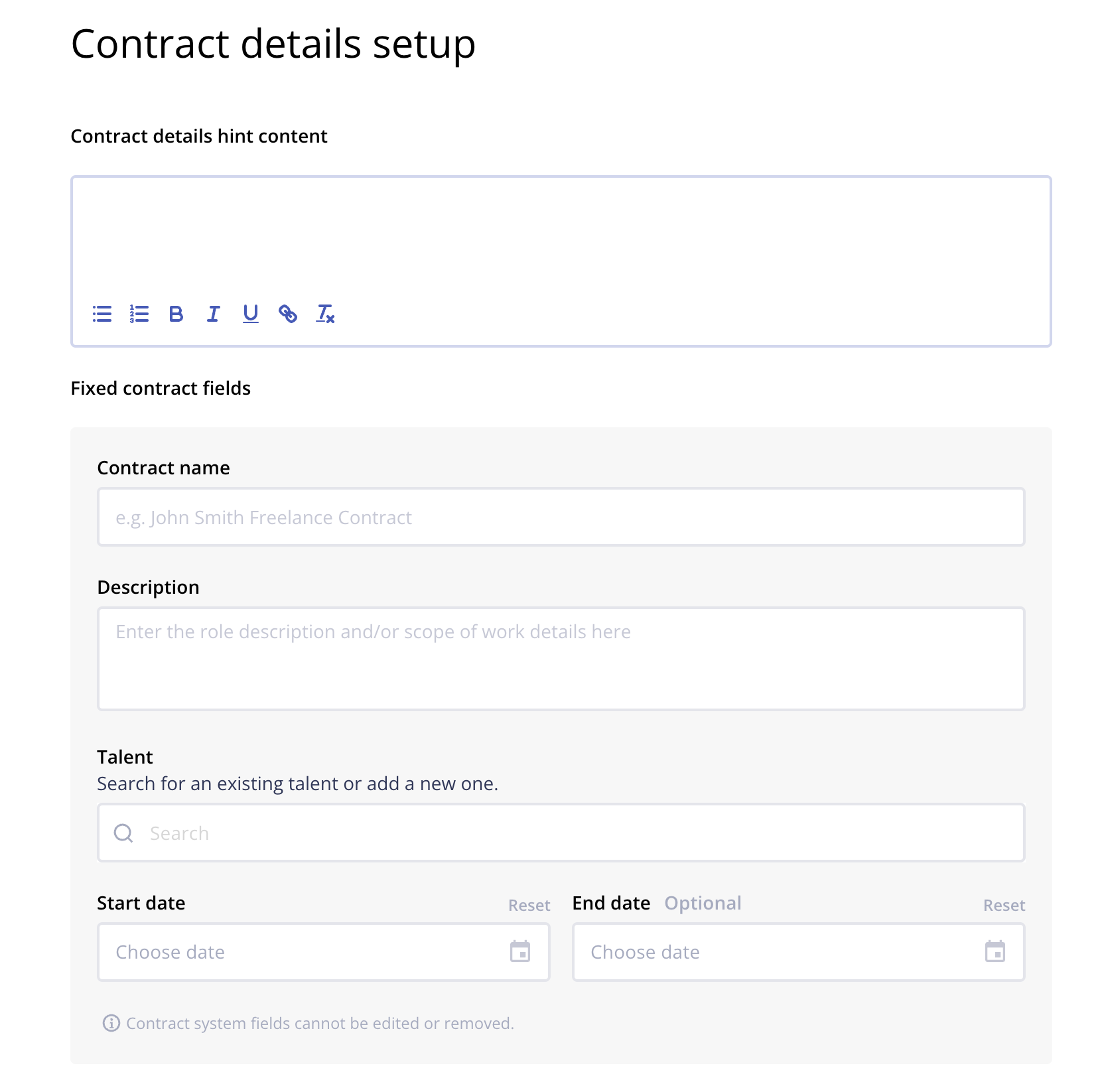
The fixed fields, such as the Contract name, description and partner, can't be edited or removed. On Fixed Rate templates, this tab also shows Automated Invoice Scheduling, where you can change the description people see on the invoicing step.
To reuse the same fields across templates, create them once in Settings. See Self Service: Global Custom Field Editor.Contract Workflow
A Contract workflow runs before the Contract is accepted, for example an internal review or a compliance check. It's optional.
- Open the Contract Workflow dropdown.
- Select a workflow, or leave it empty to send new Contracts straight to acceptance.
Only Contract workflows appear in this list. They're separate from your onboarding workflows. To build one, see How to Create a Contract Workflow.
Acceptance
Under Type of Contract Acceptance, choose how the Contract is accepted:
- Signed agreement: collects an electronic signature from each party. Choose an Agreement template. The signers and their order come from that agreement template. Tick Enable preview before signing if your team should review each agreement before it goes out.
- Acknowledge and accept in Worksuite: people accept with a button, and no signature is collected. Under Who should accept this Contract and in what order, search for teammates and add them in order.
To create or change an agreement, see Configure Your Own Agreements.
Change Request
Set who accepts changes to live Contracts, and in what order. Changes to fields your talent can see go to everyone on this list. Changes to internal-only fields apply right away if only the talent is listed. Add people under Who should accept this Contract changes and in what order. See Live Contracts Dashboard.
Expiration & Renewal
Under Contract expiration, you can:
- Tick Make end date mandatory.
- Tick Change Contract status to "Ending soon" and set how many days, weeks or months before the Contract ends this happens.
- Enter a Payment submission grace period (days): how many days after the end date invoices can still be submitted. Leave it empty for no cutoff.
Under Contract renewal, tick Renew the Contract automatically. Then set when the renewal starts, the renewed start and end dates, and at least one Renewal Approver. Approval from any one approver is enough. You can also choose a Contract Workflow for the renewal. Renewal needs a mandatory end date.
Automations
Automations start a workflow when a Contract's status changes. For example, start a performance review when a Contract ends.
- Click Add first automation.
- Under Trigger, choose Status changes to Live, Status changes to Ending soon or Status changes to Ended.
- Under Action, choose the workflow to start.
- (Optional) Click Add another automation.
Budget
This tab appears on Task-Based and Time and Material templates when budget enforcement is turned on for your account. Tick Enforce budget on Contracts created from this template to block over-budget expenses and invoices and to require a budget amount when the Contract is created. It applies to new Contracts only. If you don't see the tab, contact Worksuite Support to enable it.
Settings
- Contract Template Name and Contract Template Description: shown in the templates list.
- Visible only to admins: hides the template from the New Contract menu for everyone except admins.
- Invoice options: when shown, tick Mark Invoices as approved so the invoices these Contracts generate are marked as approved.
- Visibility for Teams: pick the teams that can use the template. Leave it empty to make it available to all teams.
- Require Team selection on Contract: people must choose a team when they create a Contract.
Your account may show extra tabs or options, depending on the features turned on for it.
Edit, duplicate or archive a template
Once someone creates a Contract from a template, most of the template's settings are locked. You can still change the name, description, team visibility, automations, renewal settings, grace period and budget setting. Changes apply to new Contracts, except automation changes, which affect every Contract from the template.
To change a locked setting, open the actions menu on the template's row in Contracts → Contract templates and click Duplicate template. A copy opens for you to edit. The same menu has:
- Archive template: for templates with Contracts. Archived templates can't be edited or used for new Contracts.
- Restore template: brings back an archived template.
- Remove template: for templates with no Contracts.
Next step
To use your template, go to Contracts → All Contracts, click New Contract and choose the template. See How to Create a Contract.
Support/Resources
Still have questions about Contract templates? Click Support in the bottom-left corner of Worksuite to contact our Support team, or email support@worksuite.com. Including a link to the page you're on and a screenshot helps us answer faster.