
When you log into Worksuite, your dashboard is your home base. Everything you need — your tasks, messages, onboarding progress, contracts, and profile — is accessible from here. This guide walks you through what you'll see and how to navigate it.
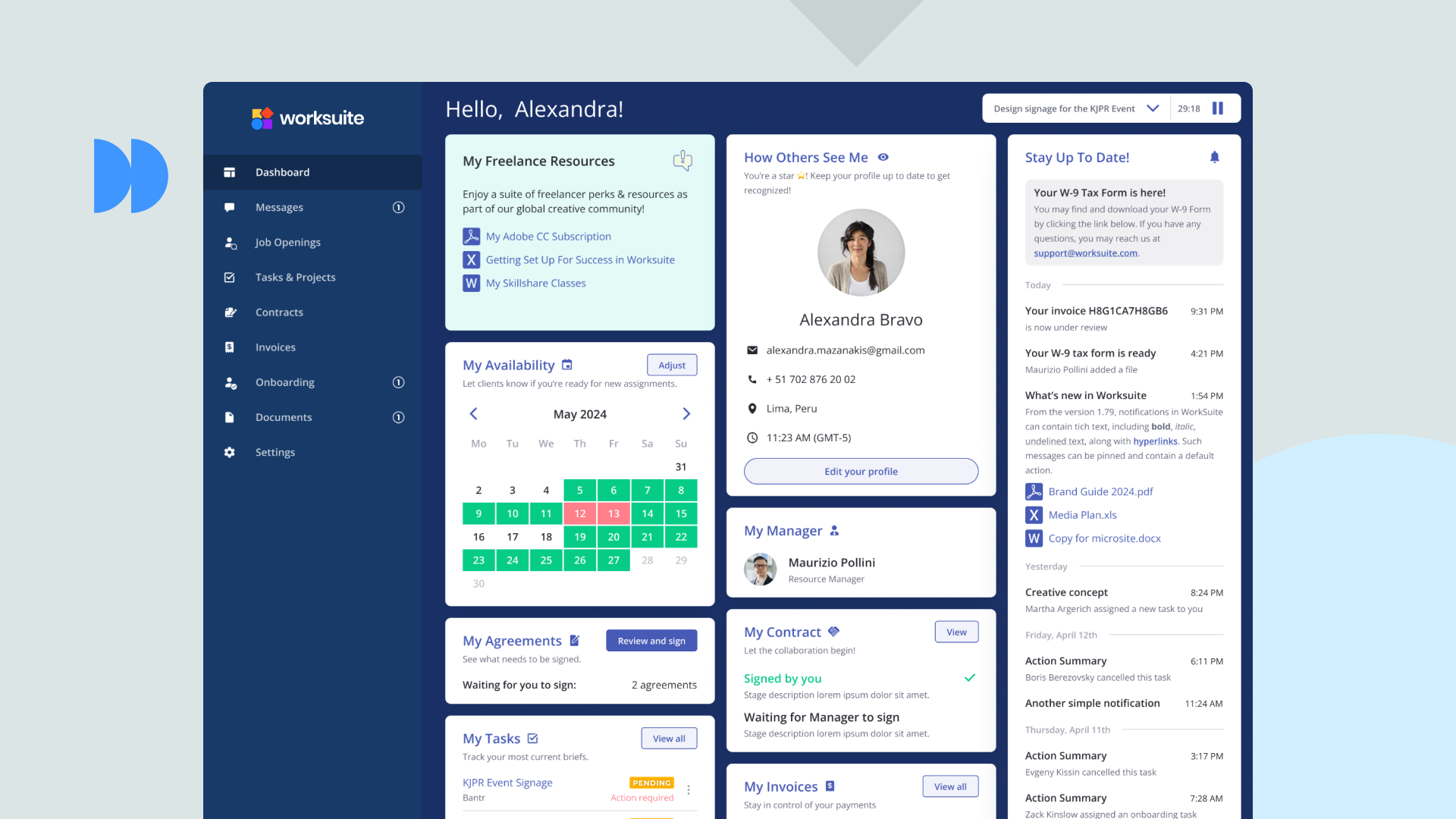
The Left-Hand Navigation
The left sidebar is your main navigation. Depending on how your client has configured your account, you may see some or all of the following sections:
- Dashboard — Your home screen. Shows an overview of your activity, pending actions, and any items that need your attention.
- Tasks & Projects — All work assigned to you by your client. This is where you accept tasks, track their status, upload deliverables, and log time.
- Messages — Your direct message thread with your client. Use this for general questions that aren't tied to a specific task or onboarding stage.
- Contracts — View agreements and contracts your client has sent you. You can review, sign, and download copies from here.
- Onboarding — Your onboarding workflow. If you're still completing steps, this is where you'll track your progress and submit required documents.
- Invoices — A record of all invoices generated from your approved timesheets and completed tasks.
- Profile — Your public profile, including your bio, skills, photo, and portfolio. Keeping this complete helps your client understand your background.
Not all sections may be visible in your account. Your client controls which features are enabled for you. If you expect to see a section and don't, contact your client to confirm it's been activated.The Dashboard Home Screen
The main dashboard area gives you a snapshot of your current status on the platform. You'll typically see:
- Pending actions — Items that need your attention, like unsigned contracts, incomplete onboarding stages, or tasks awaiting your acceptance.
- Recent activity — A summary of recent updates to your tasks, messages, or profile.
- Your profile status — Shows whether your profile is Active, Pending, or still in onboarding. You need to be Active to receive task assignments and payments.
Middle Account Menu
In the top-right corner, you'll find your account menu. From here you can:
- View and edit your profile settings
- Change your email address or password
- Access account settings (including deletion)
- Log out of Worksuite
The Support Button
In the bottom left corner of every page, you'll find the Support button. Click it any time you need help from the Worksuite Support team — it's always there, no matter which page you're on.
The Support button connects you to Worksuite's technical support team. For questions about your work, project scope, or task details, contact your client directly through the Messages section.Support / Resources
Have questions about navigating Worksuite?
Click the Support button in the bottom left of your Worksuite dashboard, or reach out to support@worksuite.com.